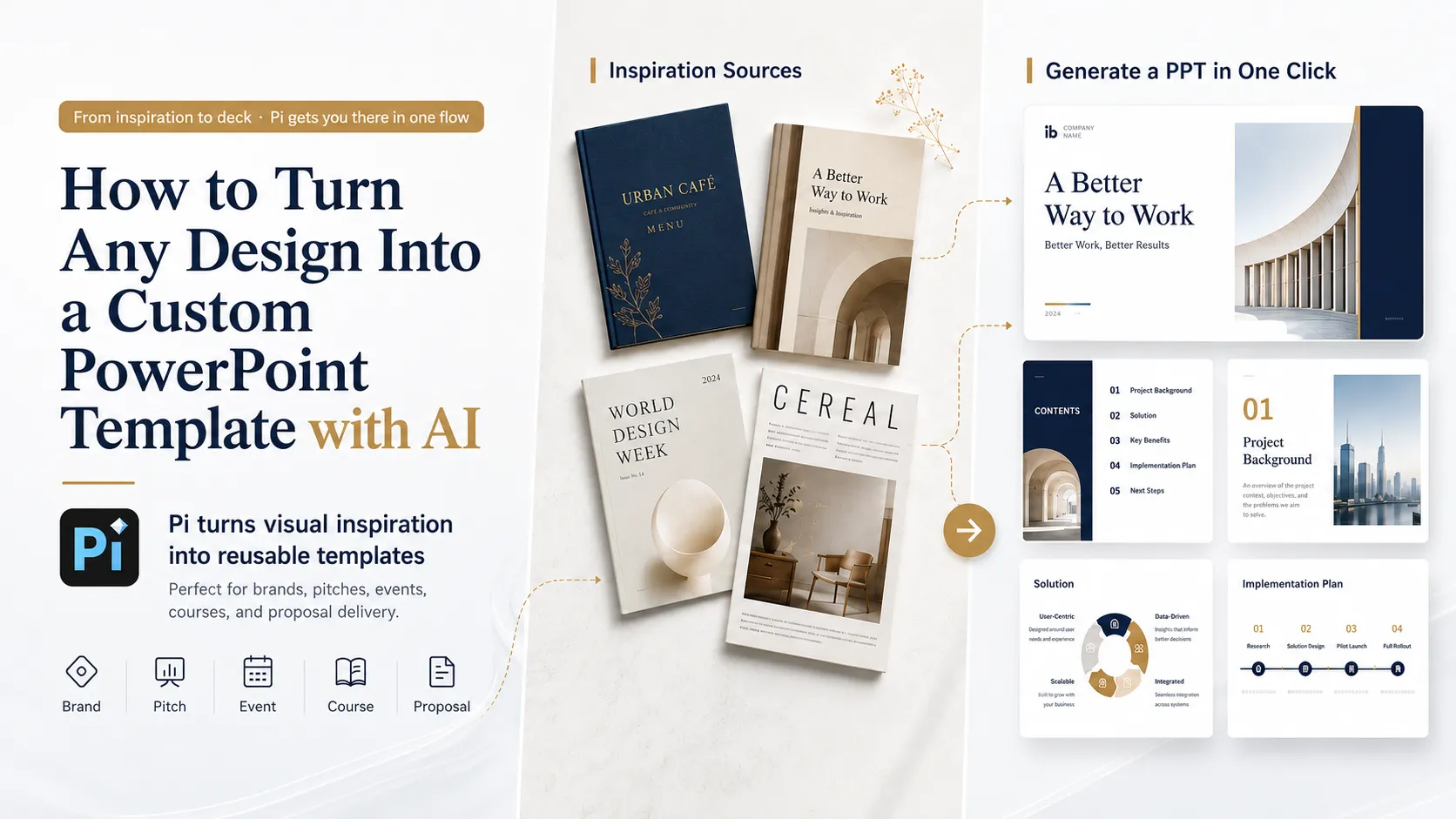
How to Create a Custom PowerPoint Template from Any Design with AI
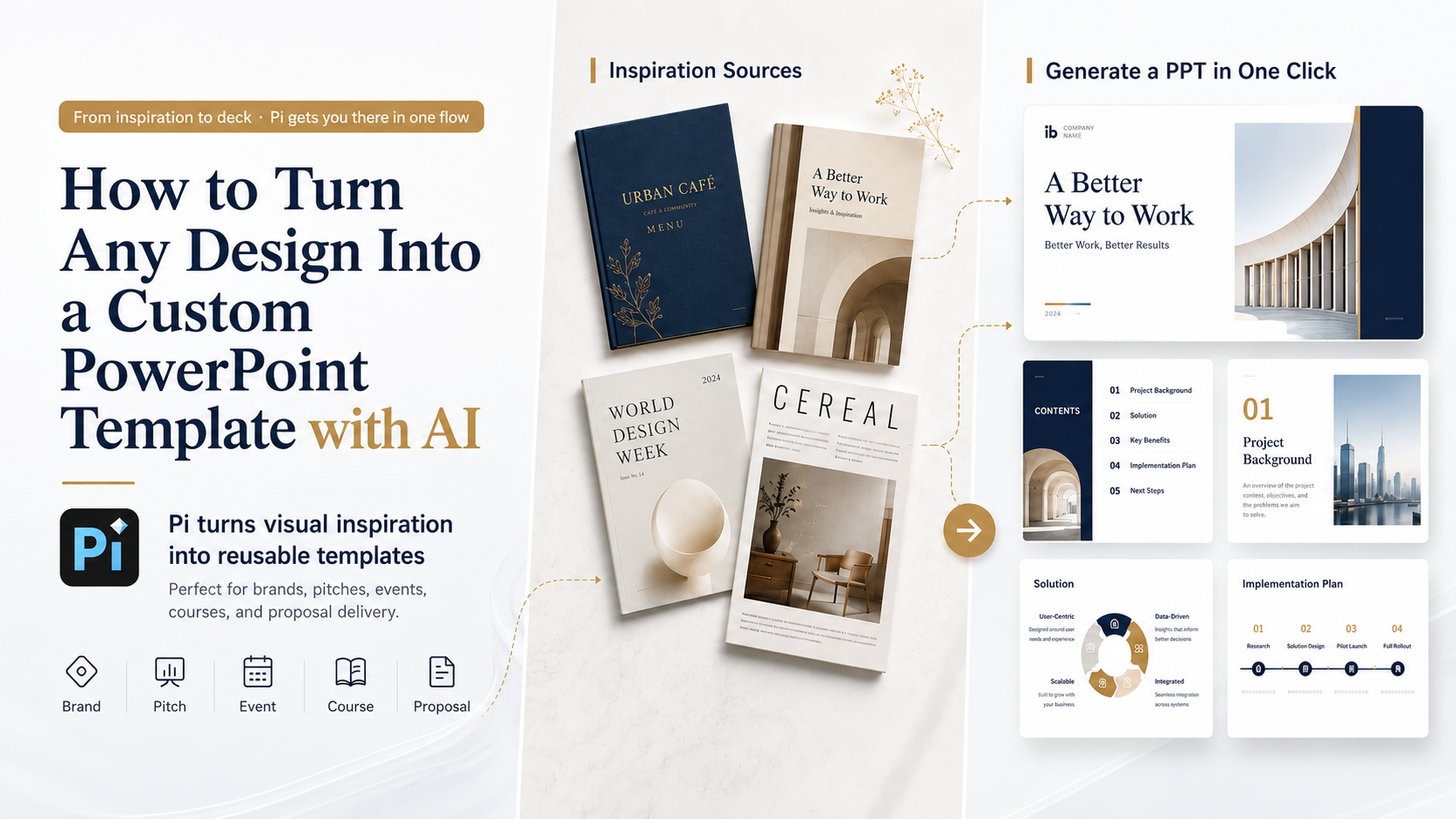
A strong presentation often begins before you open PowerPoint.
You may save a café menu for its calm colors, bookmark a magazine spread for its typography, or admire a brand guide that would suit your next proposal. The inspiration is clear, but recreating it across an entire deck is difficult.
Which fonts should you use? How should the colors be distributed? What happens when a title becomes longer, a chart replaces a photograph, or a new section needs a different layout?
Pi’s custom theme feature addresses this problem. You can upload visual references, describe the style you want, and turn that direction into a reusable AI PowerPoint template.
Instead of searching for something “close enough,” you can begin with the design language you actually want.
What Is an AI Custom PowerPoint Template?
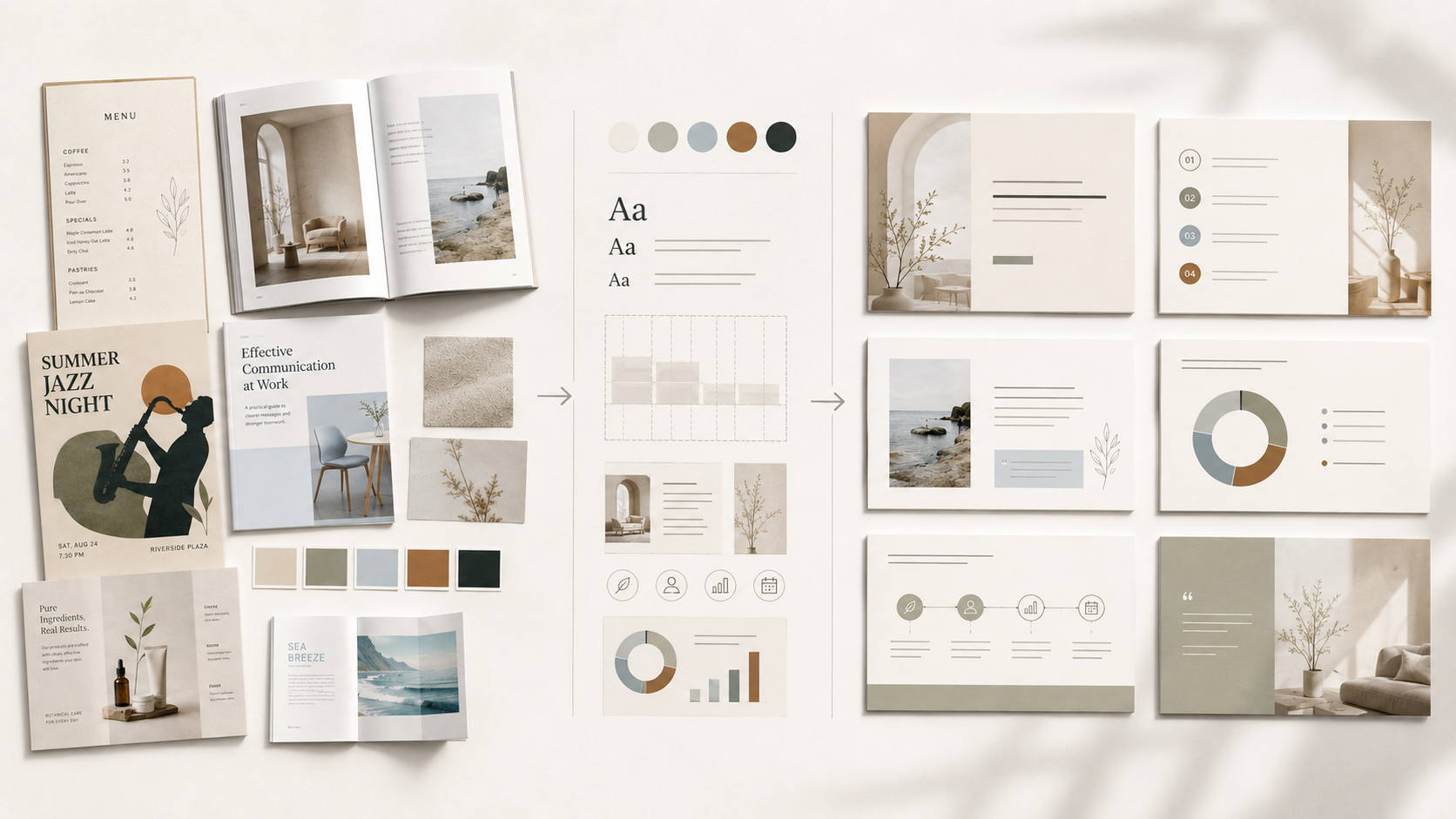
A custom PowerPoint template is more than a background color and title font. It is a repeatable system that controls how different types of content appear across a presentation.
Pi uses uploaded presentation screenshots as style references. These may come from an existing PPT template, a brand deck, a magazine-inspired presentation, a product catalog, or another visual system.
The AI analyzes recurring characteristics such as:
- Color relationships and contrast
- Headline and body-text proportions
- Image placement and cropping
- Spacing, alignment, and white space
- Card, line, shape, and icon treatments
- The rhythm between covers, section pages, content slides, and data slides
Polished design depends on more than decoration. Nielsen Norman Group explains that good visual design uses clear hierarchy, intentional color, grid alignment, and consistent choices. These principles help viewers understand what matters first and make the experience feel coherent. Read more in Good Visual Design, Explained.
Pi combines the uploaded references with an optional style prompt to create a presentation theme that can be previewed, saved, and reused.
Why Traditional PowerPoint Templates Often Break
Most presentation templates look convincing when they contain the exact sample content for which they were designed.
Problems appear when real content enters the slide.
A short headline becomes three lines. One image becomes four. A paragraph turns into a comparison table. A clean cover style must suddenly support a timeline, chart, or process diagram.
The result is familiar: text feels cramped, image proportions become awkward, and every new slide requires manual correction.
Microsoft’s official guidance shows that a reusable PowerPoint template normally depends on a slide master, multiple layouts, and placeholders, rather than one finished page. See Microsoft’s guide to creating and saving a PowerPoint template.
An AI-generated custom theme changes the starting point.
Instead of rebuilding layouts manually, users provide representative screenshots and a style description. Pi then creates a visual framework that can be applied to new presentation content.
What Visual References Can You Use?
The source does not need to be a complete PowerPoint file. Any cohesive visual system can provide useful direction.
A café menu can inspire a hospitality proposal or lifestyle brand deck. A magazine spread can guide an editorial presentation with large headlines and generous white space.
A brand manual can support sales decks, media kits, product presentations, and internal reports. An event poster can influence sponsor proposals, speaker introductions, agendas, and recap decks.
Other useful references include:
- Product catalogs and brochures
- Course materials and training handbooks
- Campaign key visuals
- Portfolio layouts
- Website designs
- Annual reports
- Existing corporate presentations
The strongest reference sets share one visual identity.
Two to six screenshots from the same template or design family give Pi clearer signals than a collection of unrelated styles.
How to Create a Custom PowerPoint Template in Pi
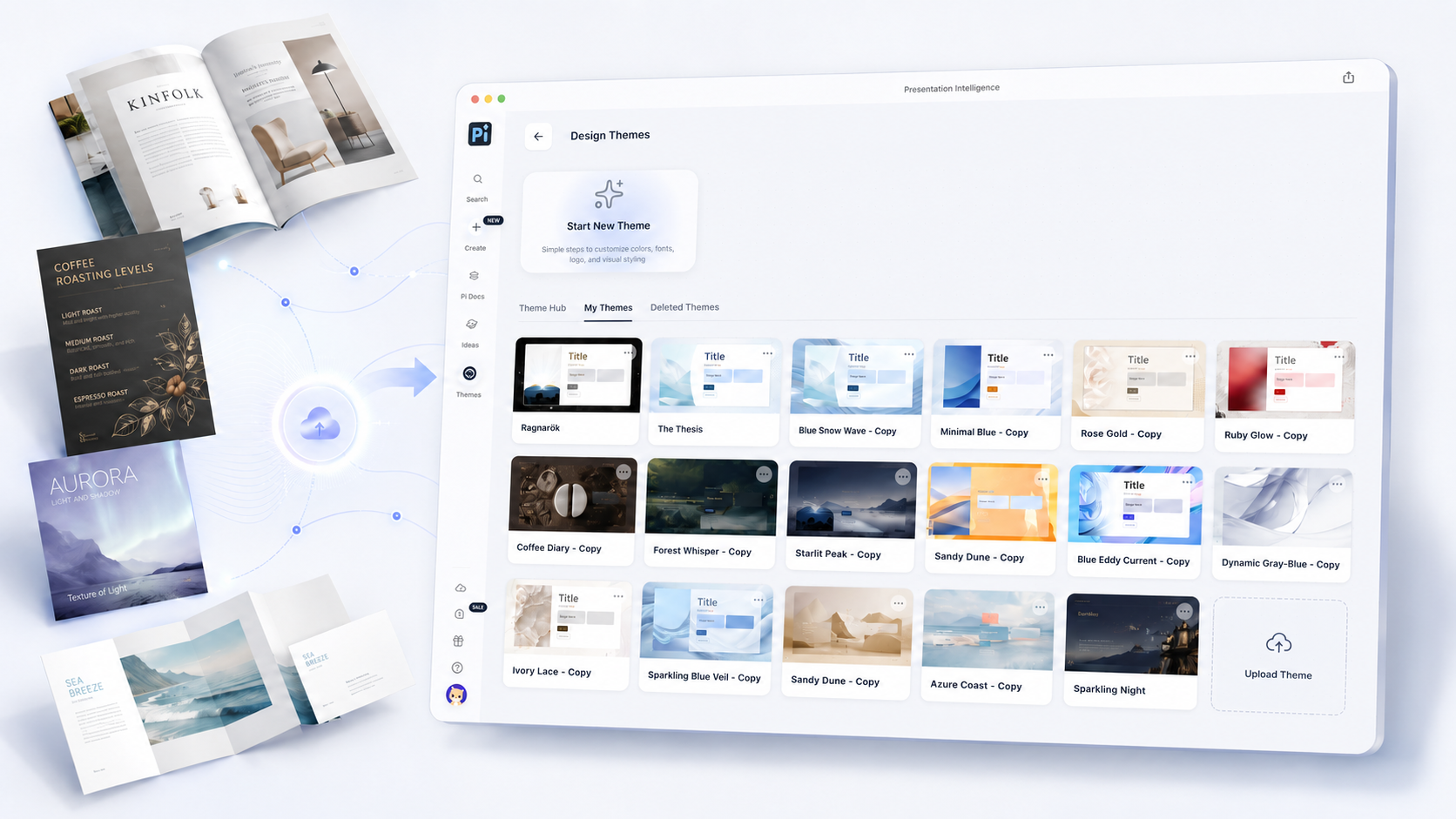
The workflow begins with the template itself, rather than the content of the new presentation.
1. Upload Template Reference Images
Open Pi’s custom theme feature and upload two to six presentation screenshots.
PNG, JPG, or WebP images can be used, and 16:9 screenshots are recommended for standard widescreen presentations.
Choose pages that reveal different parts of the design system, such as:
- A cover slide
- A content page
- An image-led page
- A section divider
- A data or process slide
The images do not need to cover every possible layout. They should simply communicate one clear and consistent visual direction.
2. Add a Theme Style Prompt
Next, add an optional English prompt describing the intended mood and design logic.
For example:
Create a refined editorial presentation theme with warm neutral colors, generous white space, elegant serif headlines, restrained sans-serif body text, full-bleed lifestyle photography, and minimal graphic decoration.
A useful style prompt can mention:
- The target audience
- The presentation scenario
- Primary and secondary colors
- Typography character
- Image style
- Information density
- Preferred layout behavior
- Visual mood, such as premium, technical, playful, or academic
The screenshots show Pi what the design looks like. The prompt explains what the design should achieve.
3. Preview and Save the Theme
Pi combines the uploaded screenshots and the style prompt to generate a theme preview.
Check whether the palette, typography, contrast, image treatment, and content blocks match the intended direction.
If the result feels too dark, decorative, minimal, or commercial, refine the prompt or replace one of the reference images.
Once the direction is right, name and save the theme. It will appear in your theme library for future use.
4. Generate a New Presentation
After saving the theme, select it when creating a new presentation in Pi.
You can enter a topic, paste text, or upload a Word document, PDF, or existing PPT. Pi can organize the information into an outline and generate slides within the custom visual framework.
The finished presentation remains editable.
You can revise text, replace images, adjust layouts, reorganize sections, or refine the theme. The result is not only one presentation, but a reusable visual asset.
Best Use Cases for Custom AI Presentation Templates
Brand Consistency
Brand teams can upload official presentation pages, campaign visuals, or brand-guideline examples.
Sales, marketing, product, and leadership materials can then begin from the same visual foundation instead of gradually drifting into unrelated styles.
Pitch Decks
Founders can combine product screenshots, website visuals, and selected reference layouts to create an investor presentation connected to the company’s identity.
The goal is not unnecessary decoration. It is a more credible, consistent, and memorable first impression.
Campaign and Event Materials
Marketing teams can turn an event key visual into sponsor decks, media plans, agendas, speaker introductions, and recap reports.
One visual system can support the entire communication cycle instead of ending with a single poster.
Education and Training
Educators can match the visual style to the subject.
A coffee-culture course might borrow from menu design, while an architecture course might use editorial magazine references. Illustrated educational materials could inspire a children’s reading presentation.
Consulting and Sales
Consulting and sales teams often create similar documents for different clients.
A reusable custom theme helps preserve a professional structure while allowing industry examples, client information, and recommendations to change.
From Finding Templates to Creating Your Own
Template libraries are useful, but they ask users to adapt their ideas to existing choices.
Custom AI templates reverse that relationship.
A menu can become the visual starting point for a brand proposal. A magazine can inspire a product launch. A corporate deck can become a shared presentation system. A campaign visual can expand into a complete set of business materials.
The goal is not to copy one page.
It is to turn a visual reference into a flexible presentation language that supports new topics, formats, and content types.
With Pi, the first question no longer has to be:
“Which template is closest?”
It can be:
“What should this presentation feel like?”
Frequently Asked Questions
Q:Can I create a PowerPoint template from an image?
A:Yes. In Pi, you can upload two to six screenshots as visual references. The images should clearly show the colors, typography, layout, image treatment, and spacing you want the new theme to follow.
Q:Do the reference images need to come from a PPT file?
A:No. They can come from a presentation, menu, magazine layout, brand guide, poster, product catalog, course document, website design, or another cohesive visual source.
Q:What should I include in the style prompt?
A:Describe the audience, mood, color palette, typography, image style, information density, and layout character. Explain the intended design direction rather than only listing visible objects.
Q:Can I edit presentations created with a custom theme?
A:Yes. After generating a presentation, you can continue editing its text, images, slide order, structure, and layouts in Pi.
Q:Is a custom PowerPoint theme useful for teams?
A:Yes. A saved theme can help teams begin new presentations from the same visual framework, improving consistency across marketing, sales, product, training, and internal communication.