How to Use Subscript in PowerPoint Without Breaking Layouts
Subscript in PowerPoint looks like a small formatting detail until it starts disrupting the slide. One lowered character can make a formula accurate, but several formulas inside a dense text box can create uneven spacing, misaligned labels, or a line that feels visually heavier than the rest of the slide.
This is common in academic, scientific, technical, and business presentations. You may need to write H2O, CO2, mathematical variables, product codes, or reference notation, but you still need the deck to look clean. The goal is not only to know where thesubscript PowerPoint control is. The goal is to use it without weakening the layout, readability, or professional polish of your slides.
What Subscript Means in PowerPoint
Subscript is text that appears slightly below the normal baseline. It is often smaller than the surrounding text and is used when meaning depends on position. In PowerPoint, subscript is commonly used for chemical formulas, scientific notation, mathematical expressions, units, references, technical labels, and specialized product names.
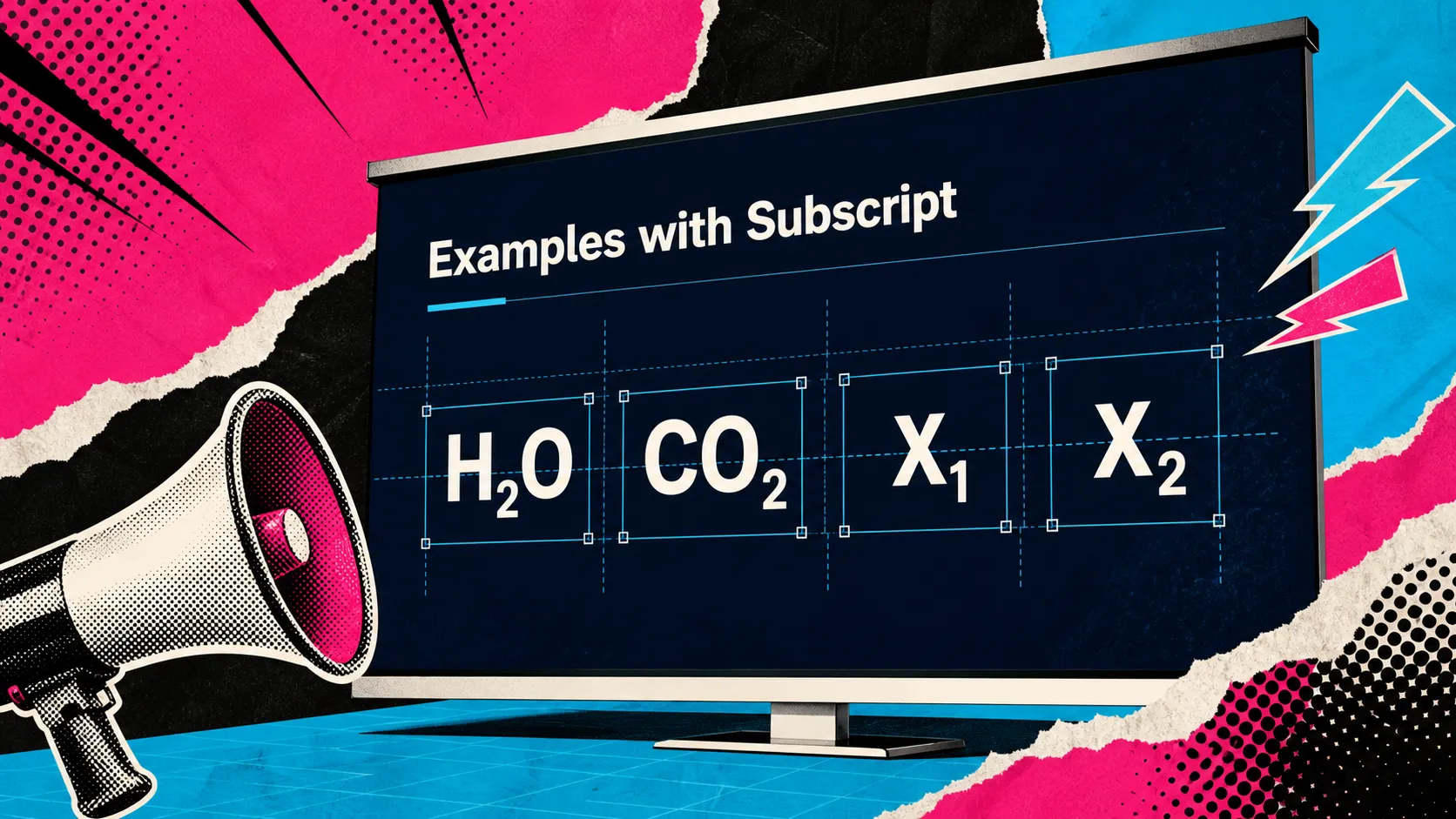
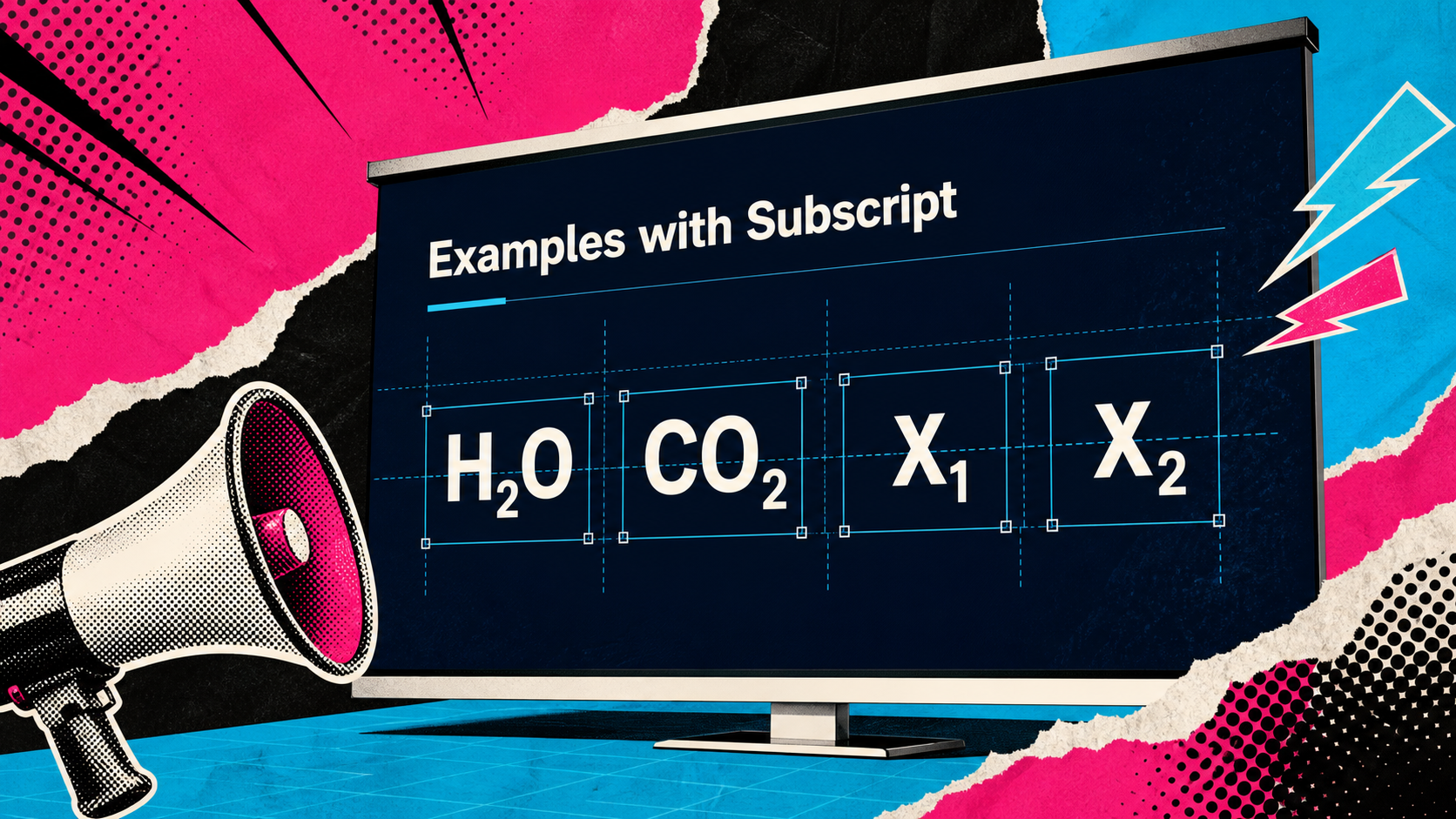
For example, in H2O, the “2” should be subscript because it indicates two hydrogen atoms. In CO2, the “2” works the same way. If the number remains on the normal baseline, the formula may still be readable to some audiences, but it looks less accurate and less professional.
Subscript is different from superscript. Superscript raises text above the baseline, as in exponents, footnote markers, or ordinal indicators. Subscript lowers text below the baseline. Both are useful in PowerPoint formatting, but both can affect line spacing and visual consistency if used carelessly.
How to Apply Subscript in PowerPoint
The fastest way to use subscript in PowerPoint is to select only the character or characters that need to be lowered. Do not select the whole word unless the entire word should appear as subscript.
In most PowerPoint versions, you can apply subscript through the Font controls. Select the character, open the Font dialog, chooseSubscript, and confirm the change. In some versions, you may also see subscript available from the ribbon or formatting menu, depending on your operating system and PowerPoint interface.
Keyboard shortcuts may also be available, but they can vary by PowerPoint version, keyboard layout, and operating system. If a shortcut does not work as expected, use the Font dialog instead. It is slower, but it gives you more predictable control when editing technical content.
After applying subscript, review the full line, not just the character. Check whether the line height changed, whether the text still fits inside the box, and whether the formula looks balanced beside the surrounding text.
Common Places to Use Subscript on Slides
Subscript is most useful when precision matters. It appears frequently in science, engineering, medicine, finance, data analysis, and academic presentations. A technical slide may use it for chemical formulas such as H2O, CO2, O2, or CH4. A mathematical slide may use it for variables such as x1, x2, or indexed terms in a formula.
It can also appear in technical specifications, product labels, standards, and units. In business presentations, subscript is less common, but it may still be needed in market research decks, sustainability reports, manufacturing updates, healthcare presentations, or product launch materials involving technical claims.
The key is to use subscript where it improves accuracy, not as a decorative style. If the lowered character does not carry meaning, it may make the slide harder to read without adding value.
Why Subscript Can Break Slide Layouts
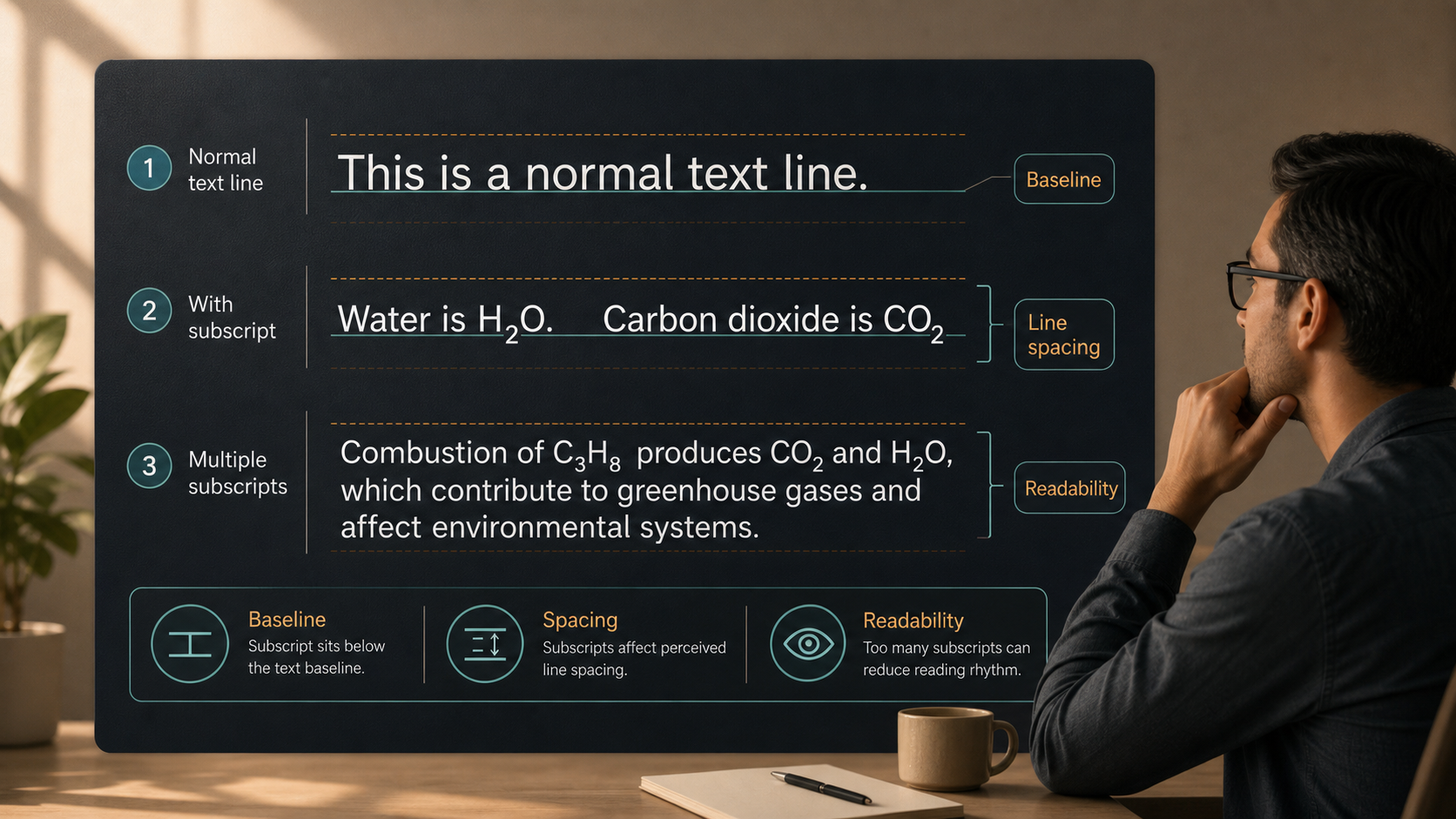
Subscript affects more than the selected character. Because it changes the vertical position of part of a line, it can alter the way a text box feels. Even when PowerPoint does not visibly change the line spacing, the viewer may perceive the line as more crowded or uneven.
The most common problems include:
- Lines with formulas appearing tighter or heavier than nearby lines
- Text boxes overflowing because formulas take up more visual space
- Inconsistent sizing when different formulas use different fonts
- Dense scientific or academic slides becoming harder to scan
- Repeated labels looking misaligned across tables or diagrams
These issues matter because presentation formatting is about more than correctness. A slide can be technically accurate and still feel unpolished if the typography is inconsistent. In professional settings, especially executive, consulting, academic, and investor-facing contexts, small formatting flaws can make a deck look rushed.
How to Keep Subscript Formatting Clean
Start with consistency. If you use subscript in multiple formulas, keep the surrounding font, size, and weight consistent across the slide. Avoid mixing fonts inside formulas unless there is a strong reason. Different fonts may render subscript at different heights, which can make repeated notation look uneven.
Next, check line spacing. If a paragraph contains several formulas, increase spacing slightly rather than letting the text feel cramped. Be careful not to overcorrect; too much line spacing can make the paragraph look disconnected. The best setting is usually the one that preserves readability without drawing attention to the formatting.
If a formula is important, consider separating it from body copy. A formula in its own line, callout, table cell, or label may be easier to read than a formula buried in a long sentence. This is especially helpful when presenting technical ideas to a mixed audience.
For repeated scientific or technical labels, align them deliberately. If CO2, H2O, and O2 appear in a table or diagram, make sure the labels share the same baseline and visual weight. Zoom out and review the slide as the audience will see it, not only as an editor working closely on the text.
Subscript Tips for Professional and Technical Presentations
Subscript supports accuracy, but accuracy should not come at the expense of clarity. In a professional deck, every piece of text must help the audience understand the point quickly. If a slide contains too many formulas, symbols, and notations in one space, the issue may not be the subscript itself. The issue may be slide density.
Technical presenters often face this tradeoff. An academic audience may expect exact notation. An executive audience may need the implication more than the full formula. A product or sales audience may need one clear technical claim, not every supporting detail. Strong presentation formattingadapts the level of detail to the audience.
| Presentation Need | PowerPoint Manual Formatting | Pi Presentation Workflow |
| Subscript control | Applies character-level formatting | Supports broader deck readiness |
| Formula cleanup | Requires manual review | Helps structure technical content |
| Slide consistency | Depends on user discipline | Helps maintain professional flow |
| Business narrative | Built slide by slide | Built around audience and message |
| Visual polish | Manual layout decisions | Premium, business-grade direction |
PowerPoint gives you the tools to apply subscript accurately. The larger challenge is deciding how that notation fits into the slide hierarchy. If the formula is central, give it space. If it is supporting detail, keep it legible but secondary.
Where Pi Fits in a More Professional Presentation Workflow
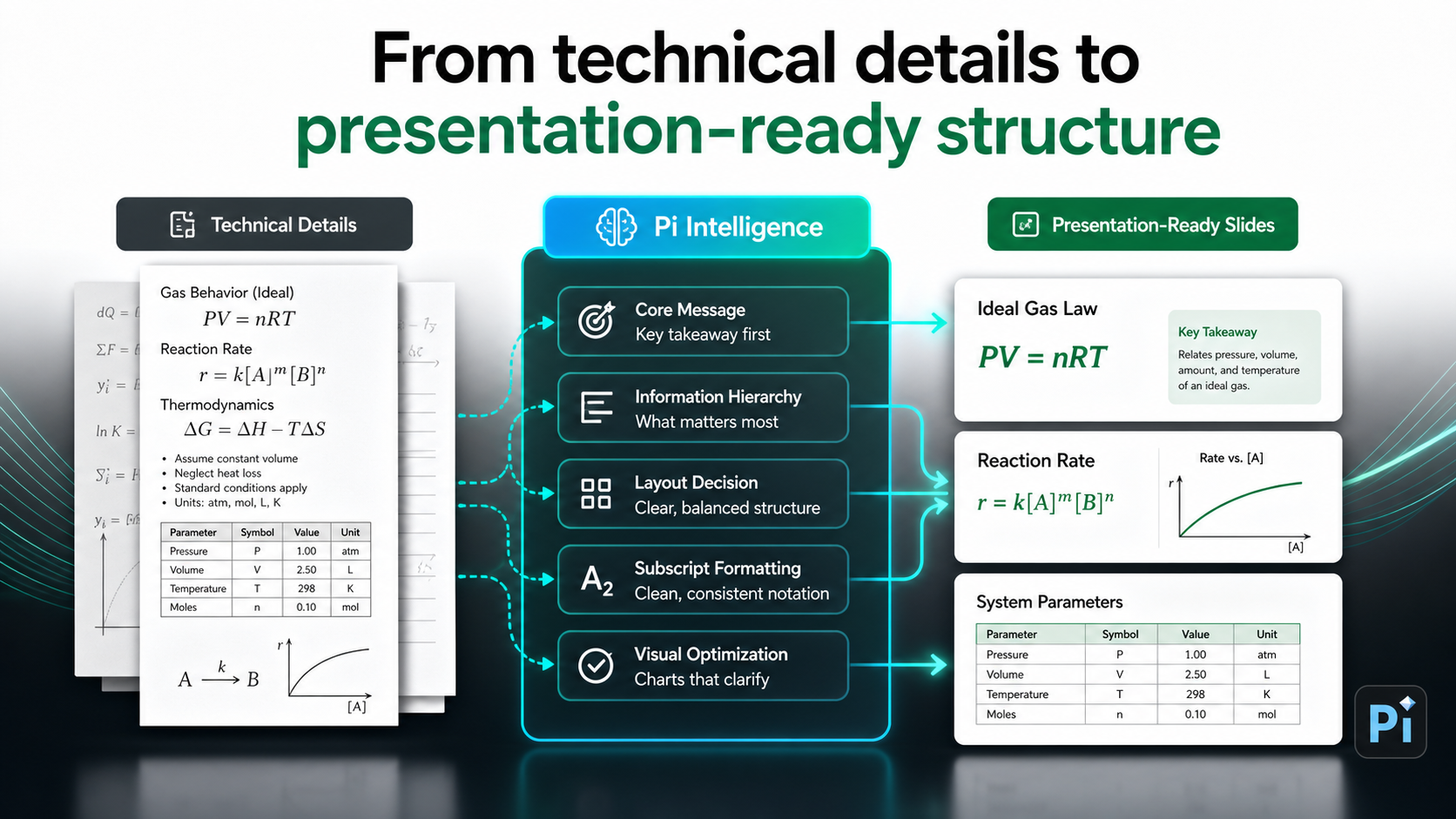
Pi, short for Presentation Intelligence, is not needed just to make one character subscript. PowerPoint already handles that manual formatting task. Pi becomes relevant when formatting is part of a larger challenge: building a professional presentation that needs structure, business logic, and premium visual quality.
1. Business Logic Comes Before Slide Styling
High-stakes decks need more than correct text formatting. A pitch deck, consulting report, sales deck, or executive presentation must guide the audience through a clear argument. Pi helps teams shape that flow before they get lost in slide-by-slide adjustments.
2. Technical Content Needs Clear Hierarchy
Technical slides often fail because every detail appears equally important. Pi helps organize ideas into a more presentation-ready hierarchy, so formulas, labels, charts, and conclusions support the message instead of competing for attention.
3. Premium Slide Quality Depends on Consistency
Manual formatting can become difficult when a deck contains many technical labels, tables, charts, and repeated slide patterns. Pi supports a more consistent professional workflow, helping teams move from rough content to business-ready presentation structure with cleaner visual direction.
Quick Formatting Checklist Before You Present
Before presenting, review every slide that contains subscript at full-slide scale. Formula accuracy is the first priority, but it is not the only one. Check whether the subscript is applied only to the intended characters, whether line spacing remains even, and whether text boxes are not overflowing.
Also compare similar slides against each other. If one slide uses CO2 in a chart label and another uses it in a paragraph, the formatting should still feel consistent. Look at font size, baseline position, spacing, and alignment. Finally, test readability from a distance. If the subscript disappears or makes the line feel crowded, simplify the text or give the formula more space.
Frequently Asked Questions (FAQ)
Q: How do I type subscript in PowerPoint? A: Select the character you want to lower, open the Font options, choose Subscript, and apply the change. In some PowerPoint versions, subscript may also be available from the ribbon or through a keyboard shortcut.
Q: Why does subscript change line spacing in PowerPoint? A: Subscript changes the vertical position of characters, which can affect how a line is rendered or perceived. Even small baseline changes can make a text box look uneven, especially in dense paragraphs.
Q: How do I fix uneven text after applying subscript? A: Check the font size, line spacing, text box height, and surrounding layout. If the line still feels crowded, separate the formula from the paragraph or place it in a dedicated label, callout, or table cell.
Q: Does subscript work differently across fonts? A: Yes. Fonts can render subscript at slightly different sizes and positions. For consistent slide text tips, use the same font family and size for repeated formulas or technical labels across your deck.